IN YOUR BROWSER
Jyro Web
Open the 3D workspace directly. Arrange cabinets, use the public library and save your own templates and complete plans when signed in.
- No desktop installation
- Personal cabinet & plan library
- SVG downloads
Open Jyro Web without installing a desktop app. Create a room, build a cabinet assembly and download the drawing when you are ready to present it.
Go straight to the live workspace: online.jyro.design ↗Browser workspace · online.jyro.design
CHOOSE YOUR WORKSPACE
Choose where you want to work. Each workspace has its own way to save and present your design.
Open the 3D workspace directly. Arrange cabinets, use the public library and save your own templates and complete plans when signed in.
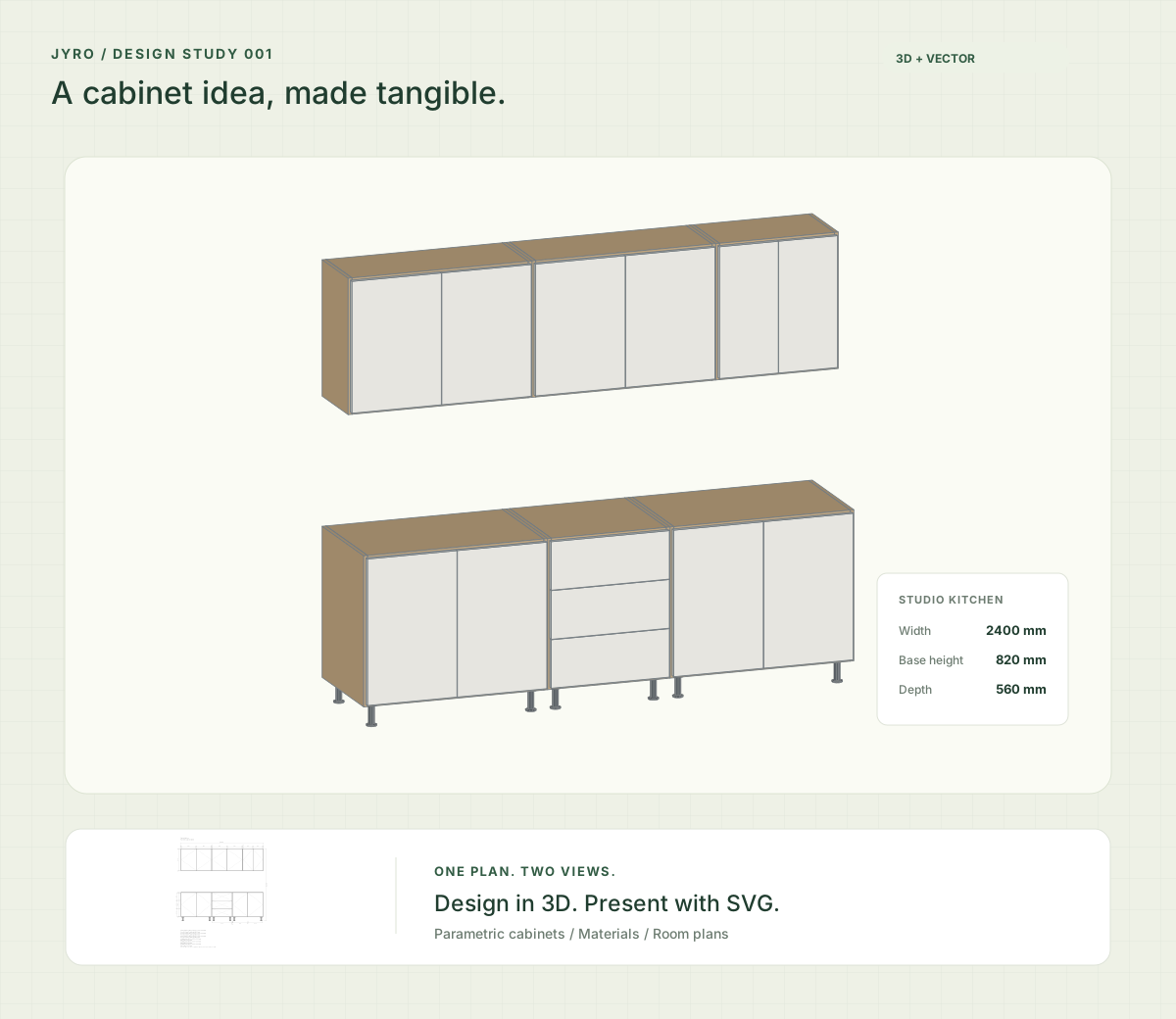
Develop the cabinet in 3D, insert a dimensioned SVG into your Design file and reopen the complete plan from its Jyro layer.
DESIGN, WITH THE DETAILS
For interior concepts, furniture studies and your next design conversation. Reuse a template, or make a cabinet your own.
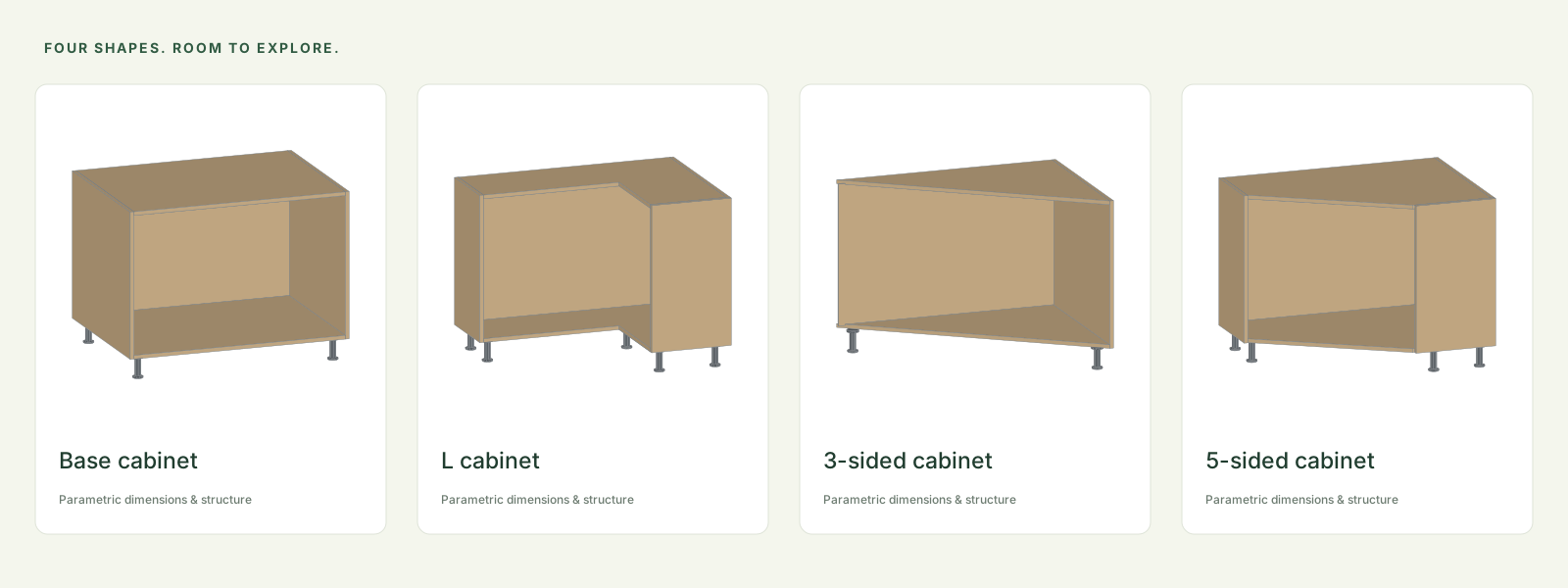
Create rectangular, L-shaped, 3-sided or 5-sided cabinets. Set width, height, depth and elevation.
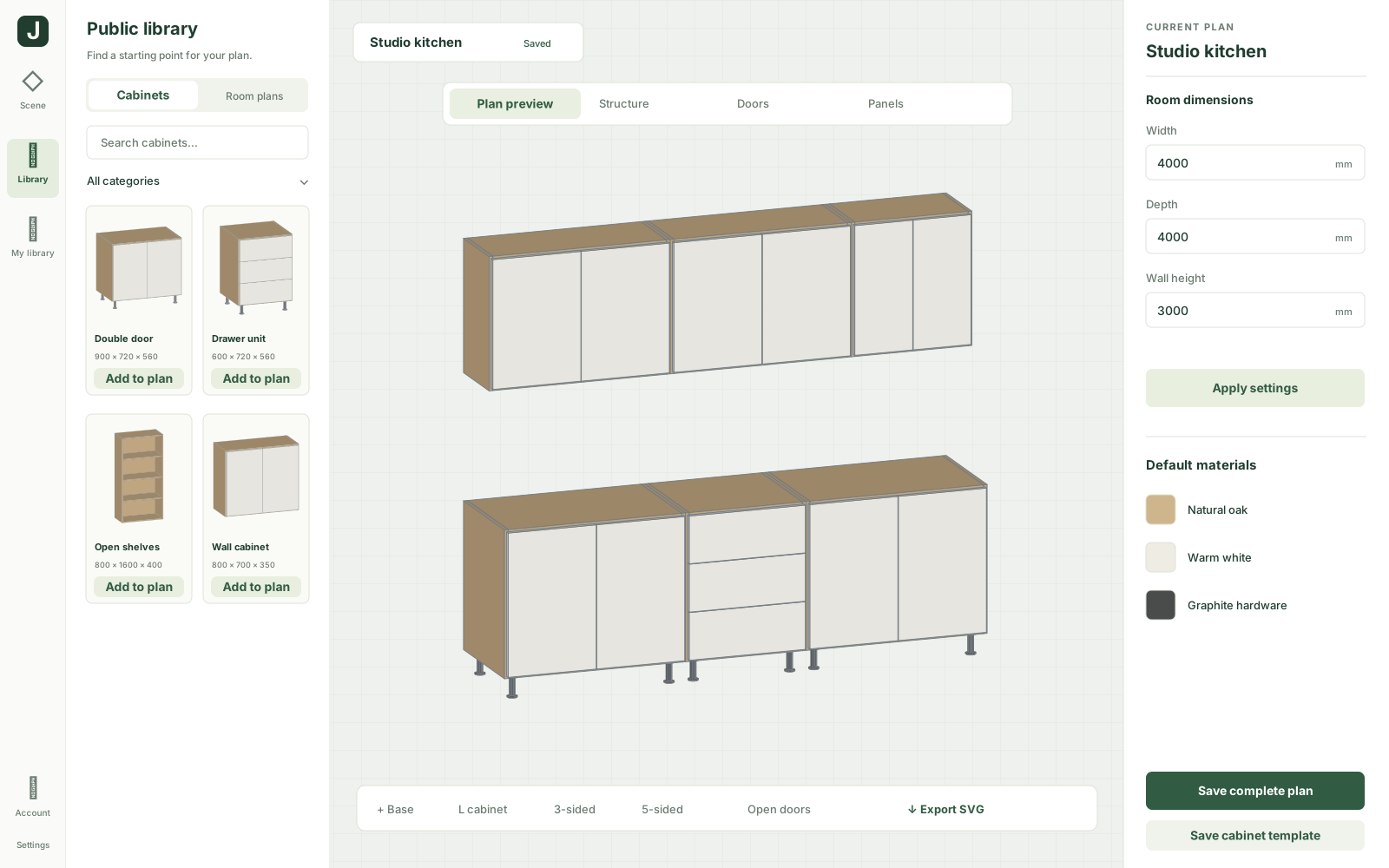
Divide cells, place shelves and partitions, and configure doors, drawers and panel properties.
Arrange cabinets in the room, snap to neighbors and walls, and preview doors and drawers opening.
Adjust colors and materials, reuse public templates, and save personal cabinets and complete plans with an account.
INSIDE JYRO
Room dimensions, cabinet structure, doors and panel properties in one place. Preview openings, refine the arrangement, then prepare the drawing.
BUILD ON YOUR OWN WORK
Keep reusable single cabinets and complete room plans in your personal library. Organize them into categories, reopen a design and save a new revision.
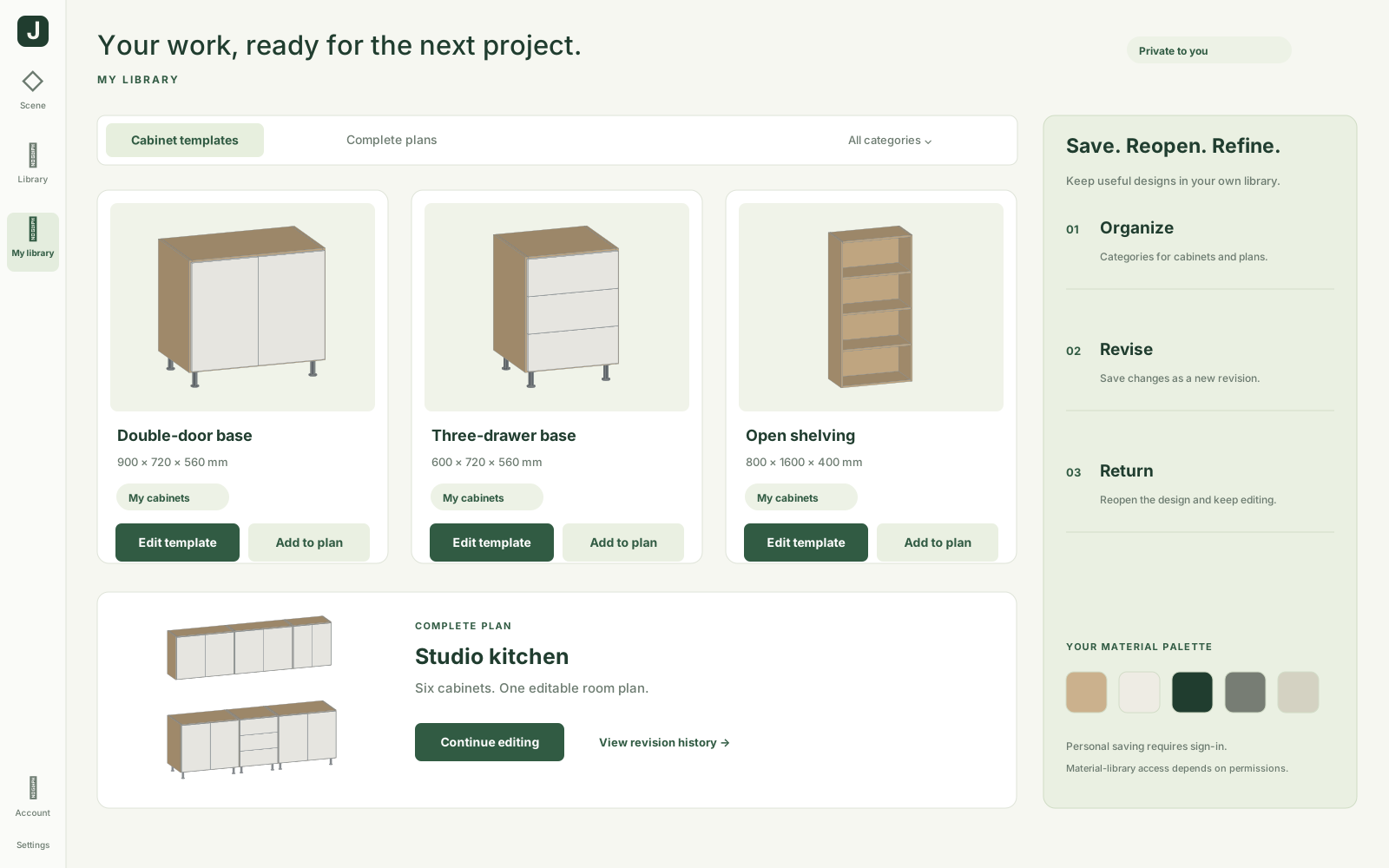
Cloud saving requires an account and internet connection. Personal items stay private unless submitted for publication; submission and material-library management depend on permissions.
THE WORKFLOW
Set the room size, create a cabinet or add a template from the public library.
Adjust structure, fronts, materials and placement. Preview the assembly and its openings.
Download an SVG in the browser. In Figma, insert or update the drawing in your file.
Reopen a saved cloud plan, or restore the complete plan from its Jyro layer in Figma.
READY FOR THE PRESENTATION
Export single cabinets or visible assemblies as dimensioned elevations or isometric SVGs. Bring the vectors into a presentation, then revise the original plan when the design changes.
Read the getting-started guide →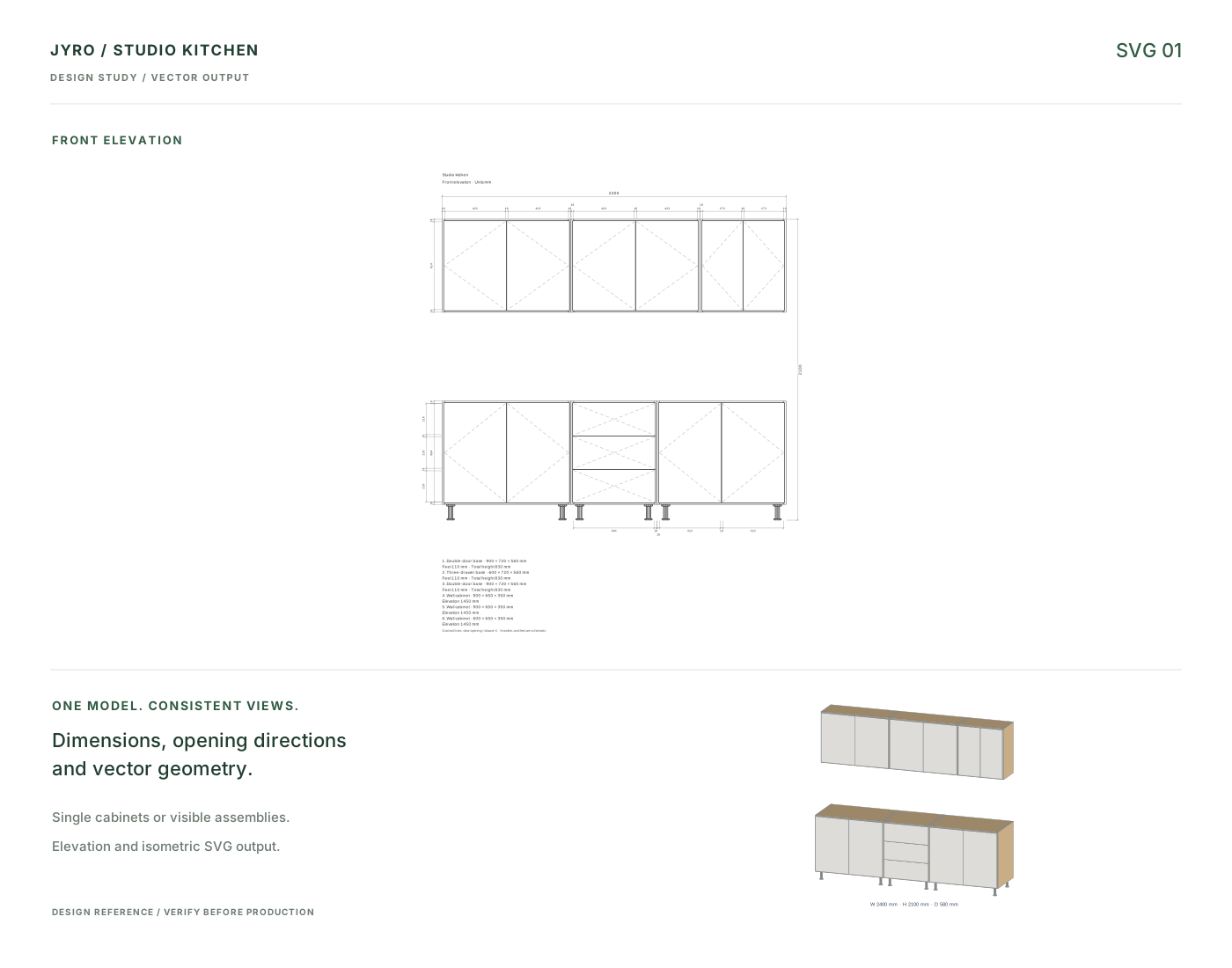
FIND YOUR STARTING POINT
| Workflow | Web | Figma |
|---|---|---|
| 3D cabinets, structure & materials | In the browser | Inside the plugin |
| Vector drawings | Download SVG | Insert, update or download SVG |
| Continue a design | Cloud plan or local draft | Jyro layer, cloud plan or local draft |
| Getting started | Open the web app | Public installation after release |
Use the web version to start directly in the browser. Choose the Figma plugin workflow when your presentation lives in Figma Design. The plugin is still being prepared for public release.
Cloud plans and personal templates require sign-in. Public content and material-library access follow the permissions available to your account.
Local drafts and Figma layer data are separate. A cloud plan can be reopened through the same account where available; local edits do not automatically update a Figma drawing.
Jyro supports design proposals and communication. Independently verify geometry, dimensions and construction details before manufacturing or installation.
Start in the browser. Explore in 3D. Keep the next revision within reach.
Launch online designerBrowser workspace · online.jyro.design
Questions or feedback? hello@jyro.design